
How to Block GPS Tracking on Android for Ultimate Privacy Protection
Protect your privacy by learning how to block GPS tracking on Android devices. This guide covers easy-to-follow steps and practical tips to stop apps and services from accessing your location, helping you maintain control over your personal data.
Key Takeaways
- Understanding GPS Tracking: Learn what GPS tracking is and how it affects your privacy on Android devices.
- Disabling Location Services: Turn off GPS and location services to prevent apps from tracking your location.
- Managing App Permissions: Control which apps can access your location data for better privacy.
- Using Privacy-Focused Apps: Employ apps designed to block or spoof GPS tracking on Android.
- Employing Airplane Mode and VPNs: Use additional tools like airplane mode and VPNs to further protect your location data.
- Regularly Reviewing Privacy Settings: Keep your device secure by regularly updating and reviewing location permissions.
- Troubleshooting Location Tracking Issues: Identify and fix common problems related to GPS tracking on Android devices.
How to Block GPS Tracking on Android for Ultimate Privacy Protection
In today’s world, privacy is more important than ever. Your Android device’s GPS tracking can reveal your location to apps, advertisers, or even strangers. This guide will teach you how to block GPS tracking on Android to keep your location data private and secure. You’ll learn simple methods, from turning off location services to using privacy apps, all explained in easy steps. Let’s get started!
Understanding GPS Tracking on Android
GPS tracking uses satellites to pinpoint your device’s location. Many apps use this data to provide services like navigation or weather updates. However, some apps track your location constantly, which can be a privacy risk. Knowing how GPS tracking works is the first step toward blocking it effectively.
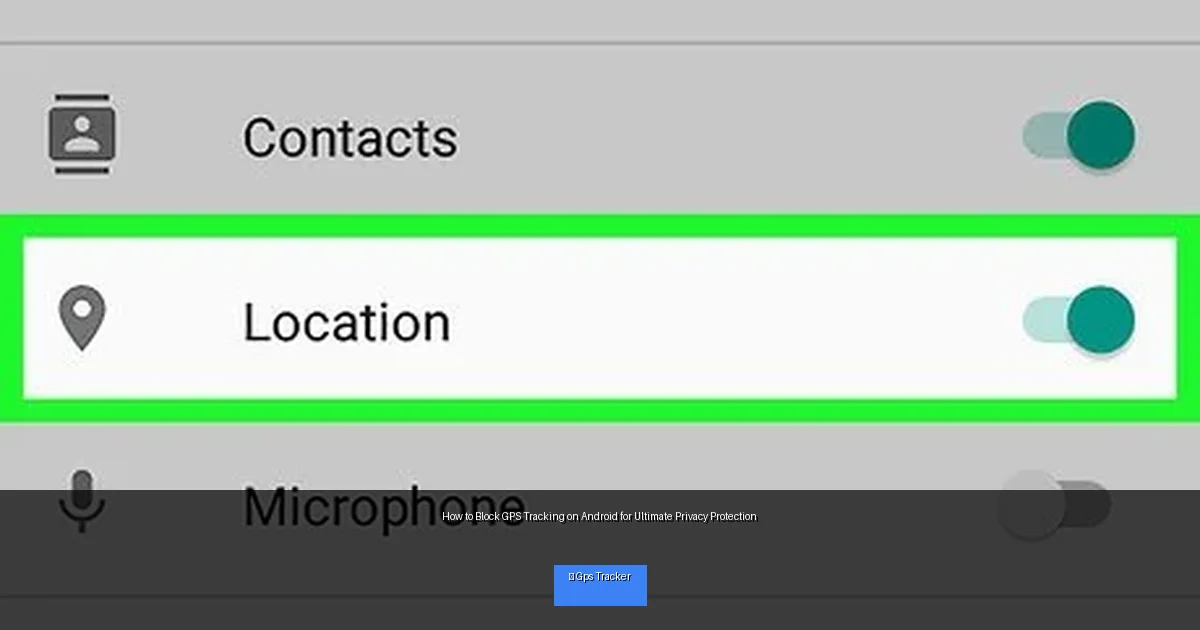
Visual guide about How to Block GPS Tracking on Android for Ultimate Privacy Protection
Image source: wikihow.com
Step 1: Disable Location Services on Your Android Device
Turn Off GPS Completely
Disabling GPS on your Android device stops apps and services from accessing your exact location.
- Open Settings on your Android device.
- Go to Location or Privacy > Location.
- Toggle off the Use Location or Location Services switch.
Use Battery Saver Mode
Battery saver mode often restricts location services, which can reduce GPS tracking.
- Open Settings.
- Tap on Battery or Device Care.
- Enable Battery Saver.
Step 2: Manage App Permissions for Location Access
Review Which Apps Have Location Access
Some apps request location access unnecessarily. Restricting these permissions helps block tracking.
- Open Settings.
- Go to Apps or Apps & Notifications.
- Select Permission Manager or App Permissions.
- Tap Location to see all apps with location access.
Change Location Permission Settings
- Select an app you want to restrict.
- Choose Deny or Allow only while using the app to limit background tracking.
Step 3: Use Privacy-Friendly Apps to Block or Spoof GPS Location
Install a GPS Spoofing App
GPS spoofing apps allow you to fake your location, which can confuse trackers.
- Find a reputable GPS spoofing app on the Google Play Store, like Fake GPS Location.
- Install and open the app.
- Follow the instructions to set a fake location.
Enable Developer Options for Mock Locations
To use GPS spoofing apps, enable mock locations in developer settings.
- Open Settings > About Phone.
- Tap Build Number seven times to enable Developer Options.
- Go back to Settings > Developer Options.
- Turn on Allow Mock Locations or select the spoof app as the mock location app.
Step 4: Use Airplane Mode and VPNs for Extra Privacy
Enable Airplane Mode
Airplane mode disables all wireless connections, including GPS signals in some cases.
- Swipe down the notification panel.
- Tap the Airplane Mode icon to enable it.
- Note: Airplane mode turns off calls, Wi-Fi, and mobile data as well.
Use a VPN to Mask Your IP Location
VPNs hide your IP address, making it harder to track your location via internet connections.
- Download a trustworthy VPN app from Google Play Store.
- Open the VPN app and connect to a server location of your choice.
Step 5: Regularly Review and Update Your Privacy Settings
Privacy is an ongoing process. Make it a habit to check your location settings and app permissions regularly.
- Set a reminder to review your settings monthly.
- Keep your Android system and apps updated for the latest privacy features.
- Uninstall apps you no longer use to reduce potential tracking.
Troubleshooting Common GPS Tracking Issues
GPS Still Active After Disabling Location Services?
Sometimes, apps may use cached or network-based location data even after GPS is off. Try clearing app cache or uninstalling suspicious apps.
Fake GPS Location Not Working?
Ensure mock locations are enabled in Developer Options and that the spoofing app is properly set as the mock location app.
Location Services Turn On Automatically?
Some apps or system features may reactivate location settings. Disable auto-start permissions for such apps or use privacy tools to monitor background activity.
Conclusion
Blocking GPS tracking on Android is essential for protecting your privacy. By following these simple steps—disabling location services, managing app permissions, using GPS spoofing apps, and employing tools like airplane mode and VPNs—you can take full control of your location data. Remember, privacy requires regular attention, so keep reviewing your settings to stay secure. Protect your Android device today for ultimate privacy protection!
🎥 Related Video: How to Disable GPS in Android – Simple Steps
📺 Phone Transformer
Always feel like your phone is tracking you even when you’re not using maps? Many Android users are surprised to find that GPS …
