How Can a Solo Female Traveler Use Public Wi-Fi Safely?
Quick Answer
A solo female traveler can use public Wi-Fi more safely by confirming the network name, using encrypted websites, keeping devices updated, and avoiding sensitive transactions on unfamiliar connections. A trusted VPN can add protection, while mobile data is often a better choice for private tasks. The Federal Trade Commission’s public Wi-Fi guidance explains why modern encrypted websites make everyday browsing safer.
Six Quick Safety Steps
- Verify the network: Ask staff for the correct Wi-Fi name before connecting.
- Check HTTPS: Use legitimate websites with encrypted connections.
- Use a trusted VPN: Add another layer of protection on unfamiliar networks.
- Protect accounts: Enable two-factor authentication and use unique passwords.
- Avoid sensitive tasks: Use cellular data for banking and important account changes when possible.
- Disconnect afterward: Turn off automatic reconnection and forget networks you no longer need.
My Most Important Travel Rule
- Never trade privacy for convenience: If a network looks suspicious, switch to mobile data or wait for a trusted connection.
When traveling alone, I want reliable internet for directions, reservations, and keeping in touch with people back home. But knowing how to use public Wi-Fi safely matters just as much as finding a connection.
A fake hotspot or suspicious login page can turn a simple internet check into a stressful problem. This guide explains practical ways to protect your accounts, travel plans, and personal information without giving up convenient connectivity.
In This Guide
- Is Public Wi-Fi Safe for Solo Female Travelers?
- What Should You Do Before Connecting to Public Wi-Fi?
- How Can You Protect Your Information While Connected?
- Is a VPN or Mobile Hotspot Better for Solo Travel?
- How Can You Protect Your Location and Travel Plans Online?
- What Should You Do If a Public Wi-Fi Network Seems Suspicious?
- Frequently Asked Questions
Is Public Wi-Fi Safe for Solo Female Travelers?
Public Wi-Fi can be reasonably safe for everyday browsing when websites and apps use modern encryption. However, fake networks, phishing pages, and unsafe device settings still create risks.
Public Wi-Fi means wireless internet access offered in shared locations such as airports, hotels, libraries, and cafés. These networks may serve dozens or hundreds of unfamiliar users.
Why Public Wi-Fi Can Be Risky
One common mistake is believing every password-protected network is trustworthy. A shared password alone does not prove that the hotspot belongs to the business.
Here are the main risks I would watch for:
- Fake Wi-Fi networks: Criminals can create hotspots with names resembling legitimate airport or hotel connections.
- Phishing pages: Fake sign-in screens may request passwords, payment details, or personal information.
- Unencrypted traffic: Older websites or poorly designed apps may expose information sent over a network.
- Unsafe file sharing: Open sharing settings can expose files or services to other connected devices.
- Account theft: Stolen passwords or convincing fake login pages can compromise email and travel accounts.
- Privacy tracking: Network operators may observe connection details, such as contacted domains, depending on encryption and configuration.
These problems aren’t limited to women traveling alone. However, losing access to a phone, email account, or booking confirmation can be especially disruptive without a travel companion.
Can Someone Read Everything You Do on Public Wi-Fi?
No, not automatically. Modern HTTPS encryption protects the contents of communications between your browser and the legitimate website.
Other people on the network generally cannot read properly encrypted messages simply because they share your Wi-Fi connection. Still, encryption does not prevent every scam or hide every connection detail.
A fake website can use HTTPS too. Always check the actual website address rather than trusting the padlock alone.
Are Airport, Hotel, and Café Networks Equally Safe?
The building itself does not determine network safety. A well-managed café network may be safer than a poorly configured hotel hotspot.
Instead, evaluate the connection using these questions:
- Did I confirm the network name with an authorized employee?
- Does the connection use appropriate security?
- Am I visiting legitimate HTTPS websites?
- Does the login page request unnecessary personal information?
- Can I use mobile data for anything sensitive?
Imagine arriving at an airport after a long flight. Two networks appear, and one uses the airport name with the word “FREE” added.
I would not choose based on that name alone. I would check official airport signage or ask an information desk.
Section Takeaway: Public Wi-Fi is not automatically dangerous, but a familiar network name is not proof of safety. Verify the connection and keep sensitive activity to trusted services.
What Should You Do Before Connecting to Public Wi-Fi?

Before joining public Wi-Fi, update your device, disable automatic connections, and confirm the network name. These small preparations can prevent avoidable problems.
1. Update Your Phone Before Traveling
Software updates fix security weaknesses that attackers may exploit. I prefer downloading major updates at home rather than using an unfamiliar hotel network.
Before departure, check these items:
- Install available phone and laptop security updates.
- Update browsers and essential travel apps.
- Enable a secure screen lock or biometric authentication.
- Activate device-finding features where supported.
- Back up important photos and documents securely.
Make sure you can still access key travel details without the internet. This is especially helpful during arrivals and unexpected connection failures.
2. Turn Off Automatic Wi-Fi Connections
Phones sometimes reconnect to remembered networks without asking. This convenience can create unnecessary exposure while moving between airports, cafés, and hotels.
Review your Wi-Fi settings and disable automatic joining for unfamiliar or previously used public networks.
On an iPhone, look under Settings and Wi-Fi for the relevant network options. On Android, similar controls appear under Wi-Fi or network preferences, depending on the manufacturer.
Turn off Wi-Fi entirely when you do not need it. You can enable it again when you reach a trusted location.
3. Confirm the Real Network Name
A fake hotspot may imitate a legitimate business name. The safest approach is to confirm the network details through a trustworthy source.
Use this simple verification routine:
- Ask an authorized employee for the exact network name.
- Check whether the network requires a password.
- Compare the name carefully, including spelling and punctuation.
- Reject unexpected prompts to install software or security certificates.
- Disconnect if the login process feels unusual.
Hotel Wi-Fi passwords are sometimes printed on room information cards. If you see conflicting details, contact reception directly.
4. Disable Sharing Features
File sharing and device discovery can be useful at home. They usually are not needed in a public airport lounge.
On a laptop, mark the connection as a public network when that option exists. This helps restrict network discovery and sharing.
For additional precautions, review the Cybersecurity and Infrastructure Security Agency’s security resources.
5. Prepare an Offline Travel Backup
Internet safety includes knowing what to do without internet access. I prefer keeping essential travel details available offline before visiting an unfamiliar destination.
- Download offline maps for the arrival area.
- Save your accommodation address and phone number.
- Keep booking confirmations accessible without Wi-Fi.
- Store emergency contact numbers securely.
- Save important transportation details before departure.
This preparation removes the pressure to join the first available network. It also helps when mobile coverage is weak.
Pro tip: Check your destination’s emergency and travel information through the U.S. Department of State or the relevant official government travel advisory service.
Section Takeaway: Your safest public Wi-Fi routine begins before you connect. Updated devices, verified networks, and offline backups reduce both digital risks and travel stress.
How Can You Protect Your Information While Connected?
Once connected, use legitimate encrypted websites, protect your passwords, and limit unnecessary sharing. A few careful habits can greatly reduce your exposure.
Use HTTPS Websites
HTTPS is a secure connection protocol that encrypts data between your browser and a website. Most mainstream travel booking platforms and email services use it.
Check for these signs:
- The website address begins with https://.
- Your browser displays no certificate or insecure-connection warning.
- The domain name matches the business you intended to visit.
- You reached the website through a trusted bookmark or manually entered address.
Remember that HTTPS protects the connection, not the honesty of the website owner. A convincing scam page may still have a valid certificate.
Enable Two-Factor Authentication
Two-factor authentication, or 2FA, requires another verification step beyond a password. It helps protect your account when someone obtains your login details.
I consider it particularly useful for:
- Primary email accounts
- Banking and payment services
- Airline and accommodation accounts
- Cloud storage
- Social media accounts
An authenticator app or passkey can provide strong protection. Save backup recovery methods before leaving home.
Do not assume text-message verification will always work abroad. Roaming restrictions and unreliable reception can interrupt SMS delivery.
Avoid Entering Passwords Into Unexpected Login Pages
Some legitimate networks use a captive portal. This is a welcome page that asks you to accept terms before using the internet.
However, a portal requesting your email password, banking credentials, or device passcode deserves suspicion.
If the screen appears unusual, stop and verify it with the network operator. Never enter a password simply because a pop-up says internet access requires it.
Use Trusted Apps for Travel Bookings
Official apps can reduce the need to search for login pages repeatedly. They also make it easier to find your existing reservations.
Only download apps from official stores or trusted provider websites. Avoid installing unknown apps promoted through public Wi-Fi pop-ups.
Keep Sensitive Notifications Private
Digital safety is not only about network attacks. Someone sitting nearby may see a booking reference, password notification, or accommodation address on your screen.
When working in a crowded place, I would take these precautions:
- Reduce sensitive lock-screen notification previews.
- Avoid displaying passport images in public.
- Keep your phone and laptop within sight.
- Be aware of people standing behind your screen.
- Lock your device whenever you step away.
These steps protect information even when your internet connection is encrypted.
Section Takeaway: Encryption, strong account security, and careful screen habits work together. No single setting replaces the need to recognize suspicious websites and requests.
Is a VPN or Mobile Hotspot Better for Solo Travel?
A personal mobile connection is often the simplest choice for sensitive tasks. A trustworthy VPN offers an additional privacy layer when public Wi-Fi is necessary.
The better choice depends on your coverage, budget, and the information you need to access.
What Does a VPN Do?
A virtual private network, or VPN, routes your internet traffic through a VPN provider’s server. A properly configured VPN encrypts traffic between your device and that server.
This can reduce what people operating or observing the local Wi-Fi network can learn about your activity.
However, a VPN does not make you anonymous or stop phishing. It also transfers some trust to the VPN provider.
Before choosing a VPN, consider:
- Whether the provider has a clear privacy policy
- Whether independent security assessments are available
- Whether the application supports modern encryption
- Whether it has a kill switch that blocks traffic after a VPN disconnection
- Whether it works reliably in your destination
- Whether local regulations permit its use
I would avoid choosing a random free VPN just to save money. Some providers collect extensive user data or rely on intrusive advertising.
The FTC’s VPN app advice explains why reviewing permissions and privacy practices matters.
Should You Use an eSIM or Mobile Hotspot Instead?
An eSIM is a digital SIM that can activate a cellular plan without inserting a physical SIM card. Many travelers use one to access mobile data abroad.
A personal hotspot shares your phone’s cellular connection with another device. It avoids relying on the café or airport Wi-Fi network.
Cellular data has its own privacy limits, but it removes several risks associated with untrusted local hotspots.
Public Wi-Fi vs. VPN vs. Mobile Data
| Connection | Main Advantage | Main Limitation | Best Use |
|---|---|---|---|
| Public Wi-Fi with HTTPS | Often free and convenient | Fake networks and local privacy risks | Maps, general research, routine browsing |
| Public Wi-Fi with trusted VPN | Additional encryption to VPN server | Requires trust in VPN provider | Routine internet use on unfamiliar hotspots |
| Cellular data or eSIM | Avoids local public Wi-Fi | Data charges and coverage limits | Banking, account recovery, private tasks |
| Offline access | No network connection required | Information may become outdated | Saved maps, addresses, confirmations |
Which Option Would I Choose?
For general destination research, I would use verified Wi-Fi and HTTPS websites. A trusted VPN could add protection if available.
For banking or changing an important account password, I would prefer mobile data. For directions, I would keep an offline map ready.
As of 2026, modern HTTPS connections protect much routine web traffic. A VPN remains an optional extra layer for many travelers rather than a substitute for secure websites.
Section Takeaway: Use mobile data for your most sensitive tasks when practical. Treat a VPN as added protection, not permission to trust suspicious websites or unknown networks.
How Can You Protect Your Location and Travel Plans Online?
Solo travel digital safety also involves controlling who can see your location, accommodation, and daily movements. Network security and personal privacy are related but different issues.
Think Carefully Before Sharing Your Live Location
Location sharing can help trusted people know where you are. But broadcasting your movements publicly may reveal more than you intend.
I prefer a selective approach:
- Share live location only with trusted contacts when useful.
- Review who can access shared maps or tracking links.
- Avoid publishing your exact room number.
- Consider posting detailed travel updates after leaving a location.
- Disable unnecessary location permissions for unfamiliar apps.
Location permissions do not automatically give nearby Wi-Fi users your GPS position. However, apps and services with permission may collect location information.
Protect Hotel and Accommodation Details
Booking confirmations often contain personal information. Some also include reservation codes or contact details that should remain private.
Keep full confirmation screenshots out of public social media posts. Use secure storage and send details only to people who need them.
For example, a photo showing your hotel’s street sign may seem harmless. Combined with a live location tag, it may reveal your current accommodation.
Be Careful When Using Public Computers
A hostel or hotel lobby computer may be convenient for printing. However, you do not know whether its software or browser settings are secure.
Avoid signing into banking, primary email, or sensitive cloud accounts on shared computers.
If you must print a ticket, use a method that reveals as little personal information as possible. Sign out afterward and avoid saving credentials or documents locally.
Set a Simple Digital Check-In Routine
I like the idea of keeping check-ins predictable instead of constantly sharing every movement. It provides reassurance without exposing a full itinerary.
A basic solo travel check-in plan might include:
- Send a message after arriving at your accommodation.
- Share the day’s general destination with a trusted contact.
- Agree on a reasonable check-in window.
- Explain what they should do if you unexpectedly lose contact.
- Keep a backup communication method available.
Choose a routine that fits your destination and personal comfort level. The aim is better communication, not constant tracking.
Section Takeaway: Secure browsing protects your online communications, while careful sharing protects your personal movements. Both matter when managing a trip independently.
What Should You Do If a Public Wi-Fi Network Seems Suspicious?
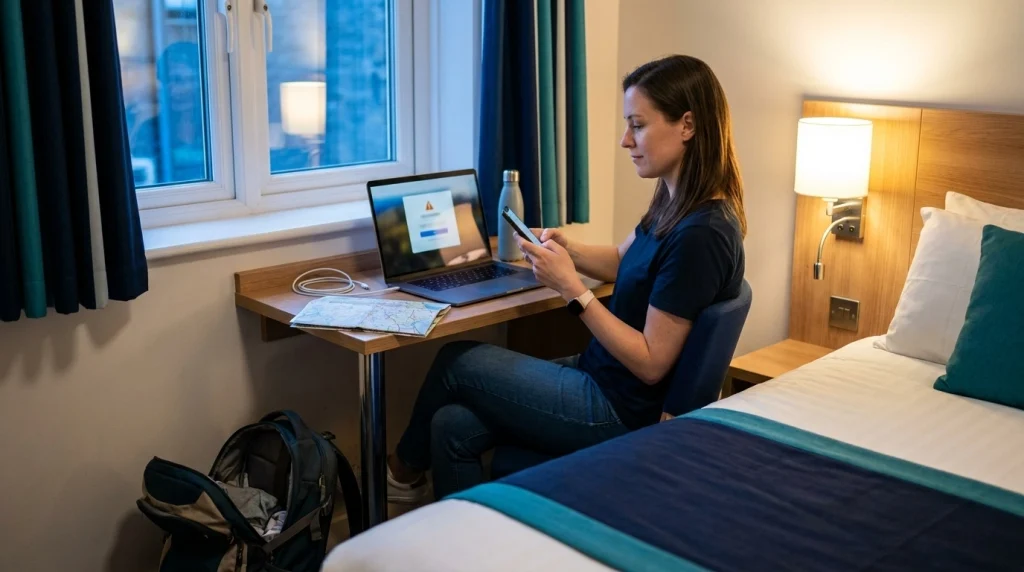
If a network appears suspicious, disconnect immediately and use a trusted connection. If you entered sensitive information, secure the affected accounts.
Recognize Common Warning Signs
A slow connection alone does not prove malicious activity. However, certain behavior deserves immediate attention.
- A login page unexpectedly asks for your email password.
- The hotspot name differs from the official network name.
- The connection requests installation of an unfamiliar app or certificate.
- Your browser displays a certificate warning.
- You are redirected to an unrelated payment website.
- You receive unexpected account login alerts.
What to Do Immediately
- Disconnect: Turn off Wi-Fi and stop using the suspicious network.
- Switch connections: Use cellular data or another verified network.
- Identify exposure: Note whether you entered passwords, financial information, or personal details.
- Change affected passwords: Use a trusted device and connection.
- Review account activity: Check for unfamiliar sessions or security notifications.
- Enable stronger protection: Turn on two-factor authentication where available.
- Report the network: Inform the relevant hotel, café, or airport staff.
Connecting briefly to a suspicious hotspot does not automatically mean your accounts were compromised. Your response should reflect what happened and what information you shared.
What If You Entered Banking Details?
Contact your bank through its official app, website, or verified customer-service number. Ask about securing your account and reviewing possible unauthorized transactions.
If you entered payment card details into a suspicious page, contact the card issuer promptly. Follow its advice about locking or replacing the card.
What If Your Phone Starts Acting Strangely?
Unexpected apps, configuration changes, or security warnings deserve investigation. Disconnect from unfamiliar networks and review recently installed software.
Remove suspicious apps using your device’s normal settings. If the issue persists, seek help from your device manufacturer or a trusted technical professional.
For more guidance on securing phones and wireless devices, consult the National Security Agency’s cybersecurity resources.
My Five-Minute Wi-Fi Safety Checklist
Before opening a travel booking or email account, I would run through this quick checklist.
- Is this the verified network?
- Is my device updated?
- Am I using the genuine website or official app?
- Does this task involve sensitive personal information?
- Would mobile data be a safer and practical alternative?
- Can I disconnect and forget the network afterward?
This small habit can make travel days easier. You do not need advanced technical skills to practice good digital safety.
Section Takeaway: Disconnect first, assess what information may have been exposed, and secure affected accounts. Quick action matters more than trying to determine exactly how a suspicious hotspot works.
Frequently Asked Questions
1. Is hotel Wi-Fi safe for solo female travelers?
Hotel Wi-Fi can be suitable for everyday browsing, especially when using legitimate HTTPS websites. Confirm the network name with reception, avoid suspicious login pages, and use mobile data for sensitive transactions when possible.
2. Can hackers steal my passwords through airport Wi-Fi?
Properly encrypted connections protect passwords while they travel between your device and legitimate websites. However, fake login pages, malicious apps, and unsafe connections can still expose information. Use two-factor authentication and verify websites carefully.
3. Do I need a VPN every time I use public Wi-Fi?
No. Modern HTTPS makes much everyday browsing reasonably safe without a VPN. A reputable VPN adds protection against certain local network risks, but it cannot prevent phishing or make an unsafe website trustworthy.
4. Is it safer to use mobile data than free Wi-Fi?
Mobile data generally avoids risks from unfamiliar local Wi-Fi hotspots. It is often the better option for banking, account recovery, and other sensitive tasks. However, cellular connections still require secure websites, updated devices, and protection against scams.
5. Can public Wi-Fi reveal my exact location?
A network operator may know you are connected at a particular location and may observe certain connection information. Public Wi-Fi does not automatically expose your precise GPS coordinates to everyone nearby. App permissions and location sharing create separate privacy considerations.
6. Should I book flights and hotels on public Wi-Fi?
You can use legitimate encrypted booking websites on verified public Wi-Fi, but extra caution is sensible when entering payment information. I would prefer cellular data for payments when available and always confirm the website address before entering card details.
7. What should I do after using public Wi-Fi?
Disconnect when finished, turn off unnecessary automatic reconnection, and forget the network if you do not need it again. Sign out of sensitive sessions on shared devices and review unexpected security notifications.
Final Thoughts: Stay Connected Without Giving Up Your Privacy
Learning how to use public Wi-Fi safely is an important part of solo female travel preparation. You do not need to avoid every airport, café, or hotel connection.
The goal is to make thoughtful choices. Verify networks, protect accounts, use encrypted websites, and keep mobile data available when practical.
Before your next solo trip, spend a few minutes reviewing your phone’s Wi-Fi settings and saving important travel details offline. These small preparations can help you stay connected, confident, and in control throughout your journey.