
How to Stop GPS Tracking on iPhone and Protect Your Privacy Easily
Stopping GPS tracking on your iPhone is essential for maintaining your privacy and controlling how your location data is shared. This guide shows you easy and effective ways to manage location services, disable tracking apps, and enhance your privacy settings without compromising your phone’s functionality.
Key Takeaways
- Understand Location Services: Learn how GPS tracking works on iPhones and what apps use your location.
- Manage App Permissions: Control which apps can access your location to reduce unwanted tracking.
- Disable Significant Locations: Turn off iPhone features that track frequent locations to protect your privacy.
- Use Airplane Mode and VPNs: Practical tips to minimize location exposure when needed.
- Regularly Review Privacy Settings: Keep your iPhone’s location settings updated for optimal privacy.
- Troubleshoot Common Issues: Fix problems related to location services and GPS on your iPhone.
How to Stop GPS Tracking on iPhone and Protect Your Privacy Easily
GPS tracking on iPhones helps with navigation, finding nearby places, and many apps’ functionalities. However, constant location tracking can raise privacy concerns. In this guide, you will learn how to stop GPS tracking on your iPhone effectively. We’ll walk you through managing location services, adjusting app permissions, and applying privacy best practices—all in simple, easy-to-follow steps.
Step 1: Understand How GPS Tracking Works on iPhone
Before stopping GPS tracking, it’s important to understand what it is. Your iPhone uses GPS, Wi-Fi, Bluetooth, and mobile networks to determine your location. Apps and system features request this information to provide personalized services. By controlling location access, you decide who can track where you are.
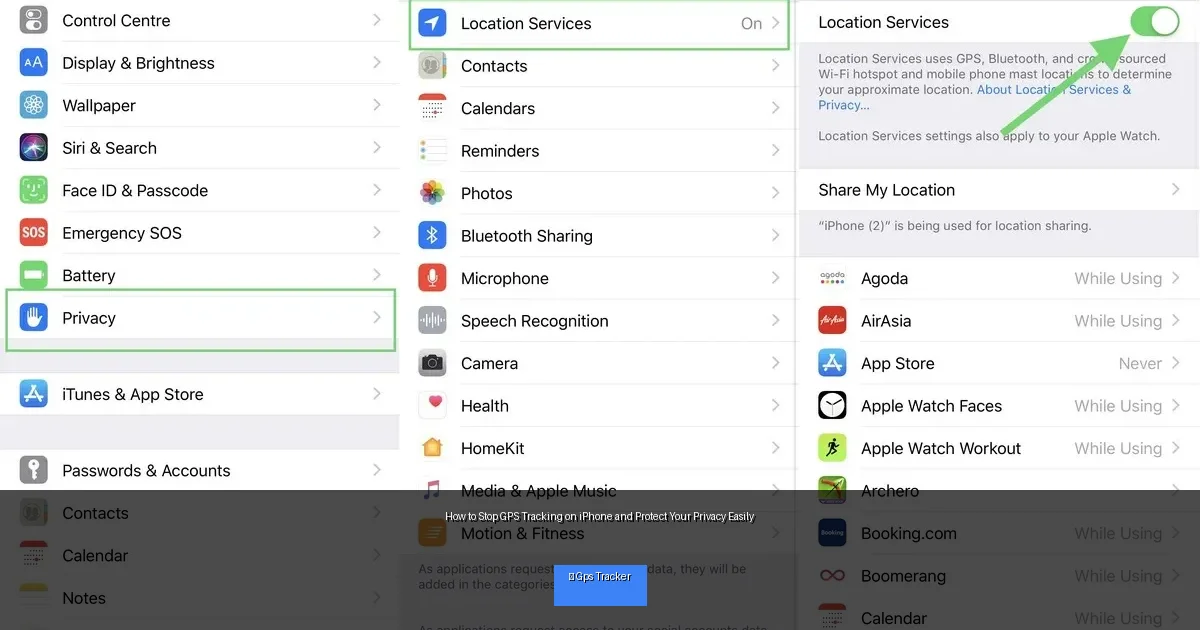
Visual guide about How to Stop GPS Tracking on iPhone and Protect Your Privacy Easily
Image source: i0.wp.com
Step 2: Manage Location Services
Open Location Services Settings
- Go to Settings on your iPhone.
- Tap Privacy & Security.
- Select Location Services.
Turn Off Location Services Completely (Optional)
If you want to stop all GPS tracking, toggle off Location Services at the top. This disables location access for all apps and system services.
Note: Turning off location services disables GPS for useful apps like Maps or Find My iPhone.
Control Location Access by App
- Scroll down to see a list of apps requesting location data.
- Select an app to see its location permission options:
- Never: The app cannot access your location.
- Ask Next Time: The app will ask permission each time.
- While Using the App: The app accesses location only when open.
- Always: The app can access location anytime (use cautiously).
- Choose the most privacy-friendly option for each app.
Step 3: Disable Significant Locations
What Are Significant Locations?
iPhone keeps a list of places you visit often to offer personalized services like better traffic predictions. This can be a privacy risk if someone accesses your phone.
How to Turn Off Significant Locations
- Open Settings > Privacy & Security > Location Services.
- Scroll down and tap System Services.
- Find and tap Significant Locations.
- Authenticate with Face ID, Touch ID, or passcode.
- Toggle off Significant Locations.
- You can also clear your location history here.
Step 4: Disable Location-Based Apple Features
Limit Location Access for Apple System Services
- In System Services (under Location Services), disable features such as:
- Location-Based Apple Ads
- Location-Based Suggestions
- Emergency Calls & SOS (if you want, but be cautious)
- This reduces how much Apple tracks your location.
Step 5: Use Airplane Mode to Stop All Tracking Temporarily
Airplane Mode disables cellular, Wi-Fi, and Bluetooth connections. This effectively stops GPS tracking by cutting off data transmission.
- Swipe down from the top-right corner (or up from the bottom on older iPhones).
- Tap the Airplane Mode icon to enable it.
Tip: You can manually enable Wi-Fi or Bluetooth after enabling Airplane Mode if needed, but this may expose some location data.
Step 6: Use a VPN to Mask Your Location
While VPNs don’t stop GPS tracking directly, they hide your IP address and encrypt internet traffic. This adds a layer of privacy when using location-based apps that rely on IP data.
- Choose a trusted VPN provider.
- Download and install the VPN app from the App Store.
- Connect to a server location of your choice.
Step 7: Regularly Review and Update Your Privacy Settings
Privacy is ongoing. Check your location settings periodically and update permissions as needed. New apps or iOS updates may change how location data is used.
- Review Location Services settings monthly.
- Check app permissions after installing new apps.
- Keep iOS updated for the latest privacy features.
Troubleshooting GPS Tracking Issues
Why Is My Location Still Being Tracked?
- Some apps may use Bluetooth or Wi-Fi to estimate your location.
- Background app refresh can allow apps to update location even when not open.
- Check background app refresh in Settings > General > Background App Refresh and disable it for apps you don’t trust.
My iPhone’s Location Services Are Not Working
- Ensure Location Services is enabled.
- Restart your iPhone.
- Reset Location & Privacy settings: Go to Settings > General > Transfer or Reset iPhone > Reset > Reset Location & Privacy.
- Update iOS to the latest version.
Conclusion
Stopping GPS tracking on your iPhone is simple when you know where to look. By managing your location services, controlling app permissions, and adjusting system settings, you can protect your privacy without losing the benefits of your device. Remember to review your settings regularly and stay informed about new privacy features in iOS updates. Your location data is valuable—take control of it today!

