
How to Stop GPS Tracking on Android and Protect Your Privacy Today
Stopping GPS tracking on your Android device is essential for maintaining your privacy in today’s digital world. This guide walks you through simple, effective ways to turn off location services, manage app permissions, and enhance your control over who tracks your location.
Key Takeaways
- Understand GPS tracking: Learn how Android devices use GPS to track your location and why it’s important to manage it.
- Disable location services: Step-by-step instructions to turn off GPS and location access on your Android device.
- Manage app permissions: Control which apps can access your location to prevent unwanted tracking.
- Use privacy settings and modes: Explore Android’s built-in privacy tools like location history controls and “Only while using the app” permissions.
- Consider third-party apps: Use trusted privacy apps to monitor or block location tracking effectively.
- Troubleshoot common issues: Tips on fixing location settings that don’t stop tracking as expected.
- Maintain long-term privacy: Best practices to regularly check and update your location settings.
How to Stop GPS Tracking on Android and Protect Your Privacy Today
Are you concerned about your Android phone tracking your location without your consent? You’re not alone. Many users want to protect their privacy and stop GPS tracking but don’t know where to start. In this guide, you’ll learn how to stop GPS tracking on Android devices with easy, practical steps. You’ll control your location sharing, manage app permissions, and keep your information safe.
What Is GPS Tracking on Android?
GPS tracking uses satellites to pinpoint your device’s exact location. Android phones use this to provide location-based services like maps, weather, and social media check-ins. However, it can also allow apps or services to track your movements continuously, which might be intrusive. Understanding how GPS tracking works is the first step to controlling it.
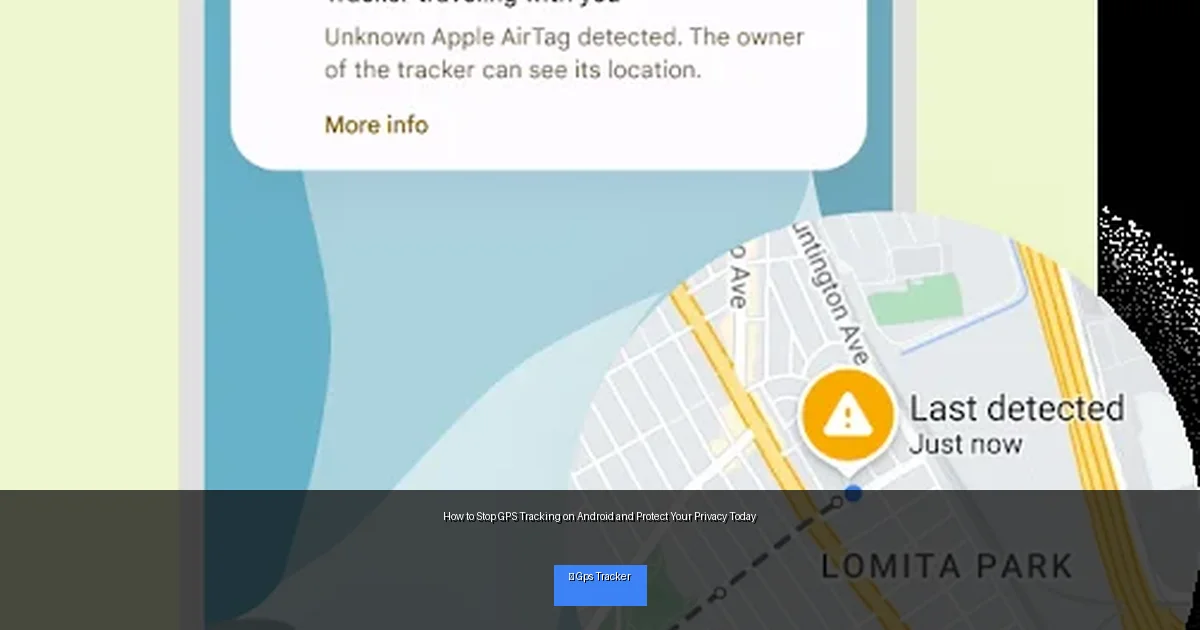
Visual guide about How to Stop GPS Tracking on Android and Protect Your Privacy Today
Image source: lh3.googleusercontent.com
Step 1: Turn Off Location Services
How to Disable GPS on Android
- Open the Settings app on your Android device.
- Tap Location or Location Services (this may vary by device).
- Toggle the switch to Off to disable all location services.
Disabling location services stops your phone from using GPS and other location methods like Wi-Fi or mobile networks.
Quick Access via Quick Settings
- Swipe down from the top of your screen to open the Quick Settings panel.
- Look for the Location icon (a pin or GPS symbol).
- Tap it to toggle location on or off quickly.
Step 2: Manage Location Permissions for Apps
Even if Location Services are on, apps can only access your location if you grant them permission. Managing these permissions is key to stopping unwanted GPS tracking.
How to Change App Location Permissions
- Go to Settings > Apps & Notifications (or just Apps).
- Select App Permissions or Permissions Manager.
- Tap Location to see which apps have access.
- Choose each app and select one of the options:
- Allow all the time – App can use location even in the background.
- Allow only while using the app – App can access location only when open.
- Deny – App cannot access your location at all.
For privacy, choose “Allow only while using the app” or “Deny” for apps that don’t need your location.
Step 3: Disable Location History and Sharing
Turn Off Google Location History
- Open the Google app or visit Google Location History.
- Tap Manage Activity.
- Toggle Location History off to stop Google from saving your location data.
Stop Sharing Your Location with Others
- Open Google Maps.
- Tap your profile picture > Location sharing.
- Review who you’re sharing your location with and stop sharing if you want.
Step 4: Use Airplane Mode or Turn Off Your Device
If you want to stop GPS tracking temporarily, enabling Airplane Mode disables all wireless services, including GPS signals. However, some apps might still collect cached location data.
- Swipe down from the top to open Quick Settings.
- Tap the Airplane Mode icon to enable it.
- To resume normal use, just tap it again to disable.
Turning off your device completely is the most foolproof way to stop tracking, but it’s not always practical.
Step 5: Use a VPN or Privacy Apps
For advanced privacy protection, consider using a VPN or privacy-focused apps that block location trackers.
- VPN: Hides your IP address, which can be used to infer your location.
- Privacy apps: Apps like “Bouncer” or “AppOps” let you manage app permissions in detail.
Make sure to download apps from trusted sources like the Google Play Store to avoid security risks.
Step 6: Regularly Check Location Settings
Privacy is an ongoing process. Apps update, and settings can change with system updates. Schedule regular checks of your location settings and app permissions to stay in control.
Troubleshooting: Why Is My Phone Still Tracking Location?
- Location services not fully off: Some devices have separate toggles for GPS, Wi-Fi scanning, or Bluetooth scanning. Check all settings under “Location”.
- App permissions: Some apps may have “All the time” permission. Double-check your app permissions.
- Cached data: Clear location cache by going to Settings > Apps > Google Play Services > Storage > Clear Cache.
- Device administrator apps: Some apps have admin rights that can override settings. Review and disable if necessary.
Conclusion
Stopping GPS tracking on your Android device is easier than you think. By turning off location services, managing app permissions, disabling location history, and using privacy tools, you can take control of your location data. Regularly reviewing your settings keeps your privacy protected in an ever-connected world. Follow these steps today to stop GPS tracking and enjoy peace of mind.
