
How to Remove GPS Tracker from Phone Quickly and Safely Explained
Removing a GPS tracker from your phone is essential if you want to protect your privacy and stop being monitored. This guide explains simple and safe methods to detect and remove GPS tracking apps or features from your smartphone quickly and effectively.
Key Takeaways
- Identify Tracking Apps: Learn to spot suspicious apps that may be tracking your location.
- Disable Location Services: Turn off GPS and location settings to stop real-time tracking.
- Uninstall Unwanted Apps: Remove apps that track your location without permission.
- Use Anti-Spyware Tools: Scan your phone with trusted apps to find hidden trackers.
- Reset Your Phone: As a last resort, factory reset can erase all trackers and restore privacy.
- Practice Safe Usage: Regularly update your phone and review app permissions to prevent future tracking.
How to Remove GPS Tracker from Phone Quickly and Safely Explained
If you suspect someone is tracking your location through your phone’s GPS, it’s important to act fast. GPS trackers can be invasive and compromise your privacy. This guide will teach you how to remove GPS tracker from phone easily and safely. Whether the tracker is an app installed without your knowledge or a setting you want to disable, these steps cover everything you need.
Step 1: Understand How GPS Tracking Works on Phones
Before you start removing trackers, it helps to know how GPS tracking happens. Most smartphones use built-in GPS chips to determine location. Apps can request access to your location data. If granted, they can track your movements. Some spyware apps run silently in the background, making them hard to spot.
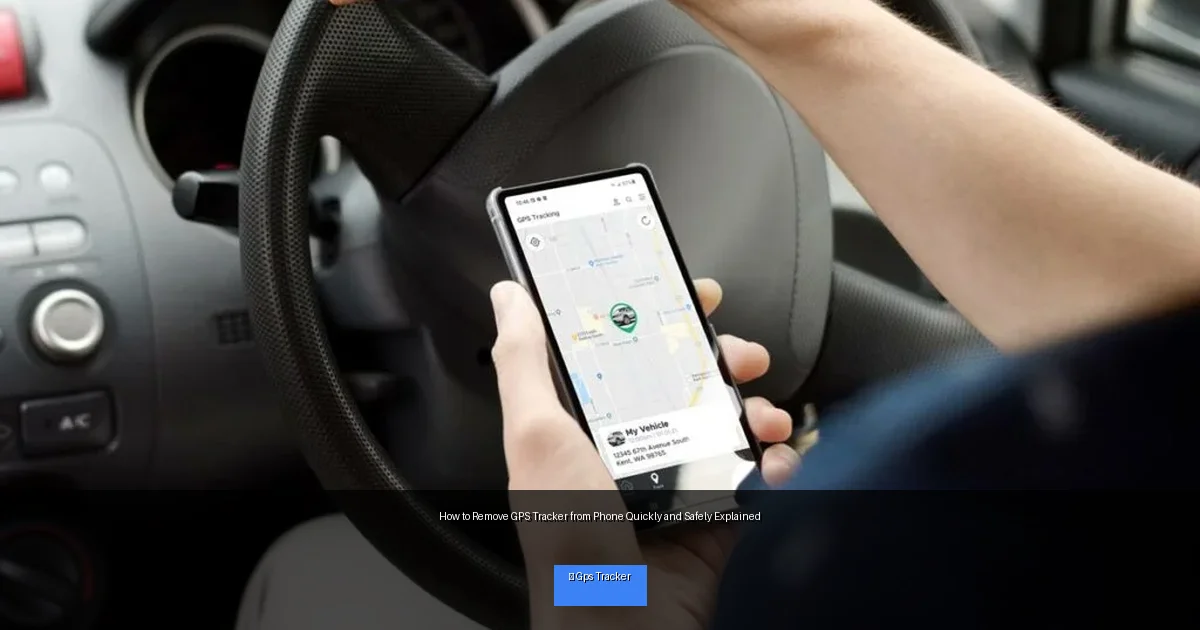
Visual guide about How to Remove GPS Tracker from Phone Quickly and Safely Explained
Image source: blue.firstechllc.com
Why GPS Trackers Are Installed
- Parental control apps: To monitor children’s whereabouts.
- Employee tracking: Employers may track company phones.
- Spyware or stalkerware: Installed without consent to track secretly.
Step 2: Check Your Phone’s Location Settings
The first quick fix is to disable location tracking in your phone’s settings. This stops apps from using GPS data.
For Android Phones
- Open Settings.
- Tap Location.
- Toggle Use location to off.
- Review App permissions under Location to see which apps have access.
For iPhones
- Go to Settings.
- Tap Privacy > Location Services.
- Toggle Location Services to off.
- Scroll down to check individual app permissions.
Tip: Turning off location services is a fast way to stop tracking, but some apps may not work properly without it.
Step 3: Identify Suspicious or Unknown Apps
Many GPS trackers come disguised as normal apps or run hidden in the background. You need to find and remove them.
How to Spot Suspicious Apps
- Look for apps you don’t remember installing.
- Check apps with generic or unusual names.
- Review apps that consume high battery or data without obvious reason.
How to Review Installed Apps
- Android: Settings > Apps > See all apps.
- iPhone: Settings > General > iPhone Storage.
Tip: Use online searches to check if any app is known for tracking or spying.
Step 4: Uninstall GPS Tracking Apps
Once you identify suspicious apps, uninstall them immediately to stop the GPS tracking.
How to Uninstall on Android
- Go to Settings > Apps.
- Select the suspicious app.
- Tap Uninstall.
How to Remove on iPhone
- Tap and hold the app icon on the home screen.
- Select Remove App.
- Confirm by tapping Delete App.
Note: Some spyware apps may hide their icons or resist uninstallation. If that happens, proceed to the next step.
Step 5: Use Anti-Spyware or Security Apps to Detect Hidden Trackers
Some GPS trackers are hidden and won’t appear in your app list. Security apps can help find and remove these.
Recommended Tools
- Android: Malwarebytes, Avast Mobile Security, Lookout.
- iPhone: While iOS is more secure, apps like Norton Mobile Security can help.
How to Scan Your Phone
- Download and install a trusted anti-spyware app from the official app store.
- Run a full scan for malware and spyware.
- Follow the app’s instructions to remove any detected threats.
Tip: Keep your security apps updated for the best protection.
Step 6: Check App Permissions Regularly
Even after removing trackers, it’s smart to monitor which apps have location access to prevent future issues.
How to Review Permissions
- Android: Settings > Apps > Permission Manager > Location.
- iPhone: Settings > Privacy > Location Services.
Revoke location permission from apps that don’t need it.
Step 7: Factory Reset Your Phone (Last Resort)
If you still suspect tracking after all efforts, a factory reset will remove all apps and data, including hidden trackers.
How to Factory Reset
- Android: Settings > System > Reset options > Erase all data (factory reset).
- iPhone: Settings > General > Reset > Erase All Content and Settings.
Warning: Back up important data before resetting. This step deletes everything on your phone.
Troubleshooting Common Issues
- Cannot uninstall suspicious app: Try booting your phone into safe mode and then uninstall.
- Trackers keep reappearing: Check for administrator privileges given to suspicious apps and revoke them.
- GPS tracking persists after reset: Contact your phone carrier or a professional for help as hardware tracking devices may be involved.
Final Thoughts
Removing a GPS tracker from your phone is crucial for your privacy and peace of mind. By following these simple steps, you can quickly identify, disable, and remove GPS trackers safely. Always stay vigilant about the apps you install and the permissions you grant. Regular checks and security scans help keep your phone secure and your location private.
