How to Fix GPS Tracker in Mobile Quickly and Effectively

Fixing the GPS tracker in your mobile can be simple when you know the right steps. This guide helps you troubleshoot GPS problems, improve accuracy, and get your device’s location services working smoothly, all with easy, practical solutions.
Key Takeaways
- Understand GPS Basics: Knowing how GPS works helps in identifying common problems.
- Check Location Settings: Ensure your mobile’s location services are enabled and set to high accuracy.
- Update Software: Keeping your phone’s software up-to-date can fix GPS glitches.
- Calibrate GPS: Calibrating your device’s compass improves GPS precision.
- Clear Cache and Data: Reset GPS-related app data to resolve tracking issues.
- Use GPS Fix Apps: Specialized apps can help refresh GPS signals and improve tracking.
- Troubleshoot Hardware: If all else fails, hardware problems may be the cause, requiring professional help.
How to Fix GPS Tracker in Mobile Quickly and Effectively
If your mobile phone’s GPS tracker is not working properly, it can be frustrating, especially when you need accurate location information. In this guide, you will learn practical, easy-to-follow steps to fix GPS issues quickly and effectively. We will cover how to check settings, calibrate your GPS, update software, and troubleshoot common problems so you can get your GPS back on track.
Understanding How GPS Works on Mobile
GPS, or Global Positioning System, uses satellites to pinpoint your device’s location. Your mobile phone receives signals from multiple satellites and calculates your exact position. However, GPS depends on several factors, including hardware, software, and environmental conditions. Understanding this helps you diagnose why your GPS tracker might not be working well.
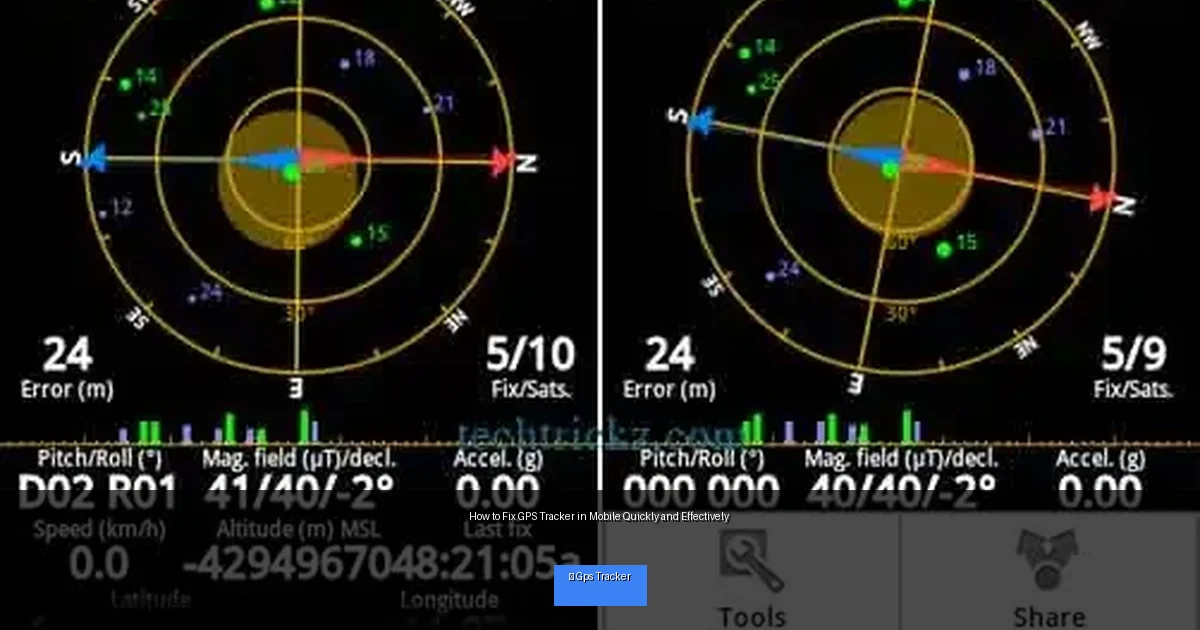
Visual guide about How to Fix GPS Tracker in Mobile Quickly and Effectively
Image source: i0.wp.com
Step 1: Check Your Location Settings
Enable Location Services
First, make sure your mobile’s location services are turned on.
- Go to Settings.
- Find Location or Privacy settings.
- Toggle Location to On.
Set Location Mode to High Accuracy
On most devices, you can choose how location is determined. For the best GPS accuracy:
- Select Location Mode or Mode.
- Choose High Accuracy (this uses GPS, Wi-Fi, and mobile networks).
Allow Location Access for Apps
Make sure the apps you use for GPS tracking have permission to access your location.
- Go to Settings > Apps.
- Select the app.
- Tap Permissions and ensure Location is allowed.
Step 2: Restart Your Mobile Device
Sometimes, a simple reboot can fix GPS problems by resetting system processes.
- Press and hold the power button.
- Choose Restart or Power Off then turn it back on.
After restarting, test your GPS tracker to see if it works better.
Step 3: Update Your Mobile’s Software
Software bugs can cause GPS issues. Keeping your phone’s system and apps updated can solve these problems.
- Go to Settings > System or About Phone.
- Tap Software Update or System Update.
- If updates are available, download and install them.
- Also, update GPS-related apps via your app store.
Step 4: Calibrate Your GPS and Compass
Use Built-in Calibration Tools
Many phones have a compass app or built-in sensor calibration tool.
- Open the compass app or go to Settings > Location > Calibrate Compass.
- Follow on-screen instructions, often involving moving your phone in a figure-8 motion.
Use Third-Party Apps to Calibrate GPS
Apps like “GPS Status & Toolbox” can help improve GPS signal and calibration.
- Download and install a trusted GPS calibration app.
- Open the app and use the calibration features.
- Clear old GPS data and download fresh satellite data with the app.
Step 5: Clear GPS Cache and Data
Sometimes, corrupted cache or data in GPS apps or services causes tracking errors.
- Go to Settings > Apps or Application Manager.
- Find Google Play Services or GPS-related system apps.
- Tap Storage, then Clear Cache and Clear Data.
- Restart your phone and test GPS again.
Step 6: Ensure Good GPS Signal Reception
GPS requires a clear view of the sky to receive satellite signals. Here are tips to get better reception:
- Use GPS outdoors or near a window.
- Avoid tall buildings, tunnels, or dense forests that block signals.
- Remove metal phone cases or accessories that may interfere with signals.
Step 7: Reset Network Settings
If GPS still fails, resetting network settings can help because GPS uses network assistance.
- Go to Settings > System > Reset.
- Tap Reset Network Settings.
- Confirm and restart your phone.
Troubleshooting Common GPS Tracker Issues
GPS Not Fixing Location or Stuck on “Waiting for GPS”
- Check if location services are enabled with high accuracy mode.
- Restart your phone.
- Calibrate your GPS and compass.
- Try using a GPS fix app to update satellite data.
GPS Accuracy Is Poor or Inconsistent
- Make sure you are outdoors with a clear sky view.
- Remove any phone case that may block signals.
- Reset network settings and clear GPS cache.
- Update software and apps.
GPS Tracker App Not Working Correctly
- Check app permissions for location access.
- Clear app cache and data.
- Reinstall the app if needed.
Hardware Issues Suspected
If none of the above steps work, your phone’s GPS chip or antenna may be damaged. In this case, contact a professional repair service or your device manufacturer for assistance.
Final Tips for Maintaining Your Mobile’s GPS Tracker
- Keep your phone’s software updated regularly.
- Use high-quality phone cases that don’t block GPS signals.
- Restart your device occasionally to refresh system processes.
- Use GPS apps with good reviews to ensure reliable tracking.
Conclusion
Fixing the GPS tracker in your mobile can be quick and easy if you follow the right steps. Start by checking your location settings, updating software, and calibrating your GPS. If problems persist, clearing cache, resetting network settings, or seeking professional help may be necessary. With these tips, you can enjoy accurate GPS tracking and reliable location services on your mobile device.