How to Block GPS Tracker on Phone and Protect Your Privacy Today

Blocking a GPS tracker on your phone is essential to keep your location private and secure. This guide will show you simple, effective methods to detect and disable GPS tracking, helping you regain control over your personal data and protect your privacy today.
Key Takeaways
- Understand GPS Tracking: Learn how GPS trackers work and how they collect your location data.
- Check for Tracking Apps: Identify and remove suspicious apps that might be tracking your phone.
- Disable Location Services: Temporarily turn off or customize your phone’s GPS settings to block trackers.
- Use Airplane Mode and VPNs: Employ these tools to hide or mask your location from trackers.
- Physically Inspect Your Device: Detect any external GPS tracking devices attached to your phone or belongings.
- Regularly Update Software: Keep your phone’s system and apps updated for better security against trackers.
- Understand Legal and Privacy Tools: Utilize privacy settings and legal options to protect yourself from unauthorized tracking.
How to Block GPS Tracker on Phone and Protect Your Privacy Today
In today’s digital world, our phones often share more information than we realize. GPS trackers can pinpoint your location without your consent, putting your privacy at risk. This guide will teach you how to block GPS tracker on phone using easy, practical steps. Whether you suspect someone is tracking you or you want to enhance your privacy, this article will help you take control.
Understanding GPS Tracking on Phones
Before blocking GPS trackers, it’s important to know how they work. A GPS tracker uses your phone’s built-in GPS chip, Wi-Fi signals, or cellular networks to pinpoint your exact location. This data can be accessed by apps, services, or even unauthorized third parties. Some trackers are installed as apps, while others might be physical devices attached to your phone or belongings.
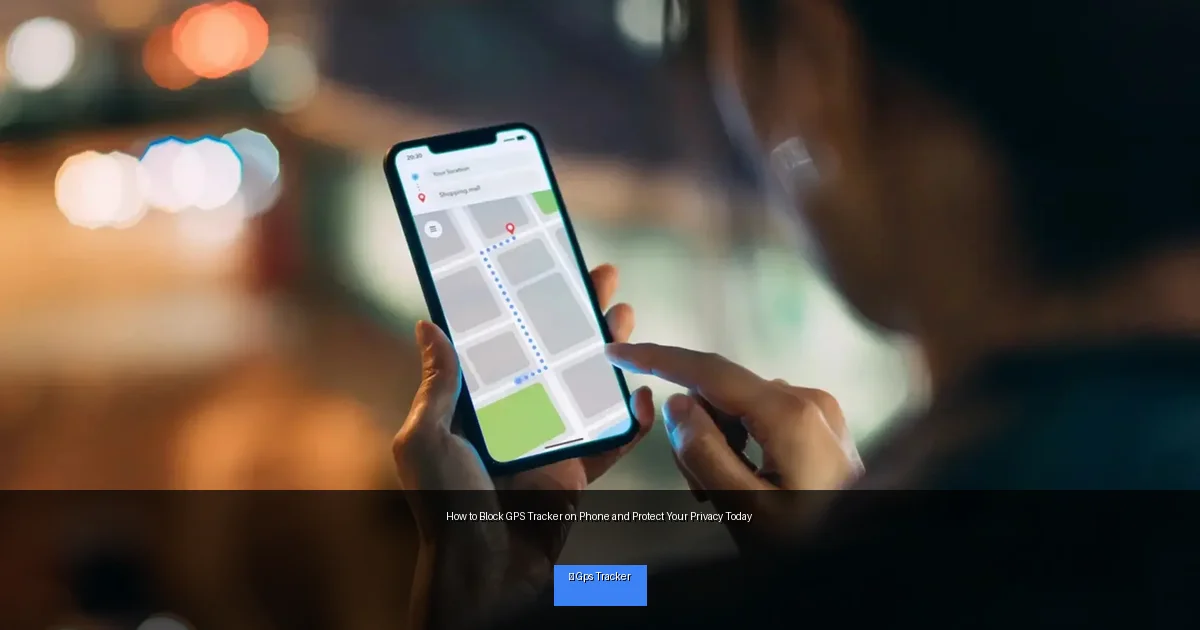
Visual guide about How to Block GPS Tracker on Phone and Protect Your Privacy Today
Image source: citizenside.com
Step 1: Identify If Your Phone Is Being Tracked
Check for Unusual Battery Drain
GPS tracking apps often run in the background, consuming battery power. If you notice your phone’s battery draining faster than usual, it might be a sign of hidden tracking apps.
Look for Strange Apps
Go through your installed apps and look for anything unfamiliar or suspicious. Spyware or tracker apps often have generic names or may disguise themselves as system apps.
Monitor Data Usage
GPS trackers send your location data over the internet. Check your data usage for unusual spikes, especially when you’re not actively using your phone.
Listen for Odd Noises During Calls
Sometimes, spyware can cause crackling or clicking sounds during phone calls. While not always conclusive, it’s worth noting.
Step 2: Remove or Disable Tracking Apps
Uninstall Suspicious Apps
If you find apps you didn’t install or don’t recognize, uninstall them immediately. On Android, go to Settings > Apps & notifications. On iPhone, press and hold the app icon and select “Delete App.”
Check App Permissions
Review which apps have access to your location. On Android, navigate to Settings > Privacy > Location > App permissions. On iPhone, go to Settings > Privacy > Location Services. Disable location access for suspicious apps.
Use Anti-Spyware Apps
Install trusted security apps like Malwarebytes or Avast to scan your phone for spyware or tracking apps and remove them automatically.
Step 3: Turn Off or Limit Location Services
Disable Location Services Entirely
One of the simplest ways to block GPS tracking is to turn off location services. On Android, go to Settings > Location > Use location and toggle off. On iPhone, go to Settings > Privacy > Location Services and switch it off.
Use Location Access Only When Using the App
If you want to keep some location-based apps functional, set location access to “Only while using the app.” This limits tracking when apps are running in the background.
Disable Location History
Some services save your location history. For Google users, visit your Google Account > Data & Personalization > Location History and turn it off.
Step 4: Use Airplane Mode and VPNs for Extra Protection
Activate Airplane Mode
Airplane mode disables all wireless communication, including GPS signals in some phones. Use it when you want to ensure no location data is transmitted.
Use a VPN
A Virtual Private Network (VPN) masks your IP address and encrypts your internet traffic. While it doesn’t block GPS itself, it can prevent apps and websites from tracking your location via your IP.
Step 5: Physically Inspect Your Phone and Belongings
Search for External GPS Trackers
Sometimes, physical GPS trackers can be attached to your phone or personal items. Look for small devices, unusual cases, or bulky attachments.
Use Detector Apps
Apps like “Hidden Device Detector” can scan for nearby Bluetooth or RF signals that might indicate the presence of a tracker.
Step 6: Keep Your Phone Secure and Updated
Update Your Phone’s Software
Regularly update your phone’s operating system and apps to patch security vulnerabilities that trackers might exploit.
Use Strong Passwords and Enable Two-Factor Authentication
Protect your phone and accounts with strong passwords and two-factor authentication to prevent unauthorized access.
Troubleshooting Common Issues
Still Feeling Tracked?
If you’ve followed all steps but still suspect tracking, consider doing a factory reset on your phone. This erases all data and apps, removing any hidden trackers.
Battery Still Draining Fast?
Close background apps, disable unnecessary services, and check battery usage in settings to identify apps consuming the most power.
Location Services Won’t Turn Off?
Some phones have system apps that maintain location access. Try restarting your device or consult your phone’s support for advanced settings.
Conclusion
Protecting your privacy is crucial in a world full of digital tracking. By learning how to block GPS tracker on phone, you can stop unwanted location sharing and secure your personal space. Follow these steps regularly to maintain your phone’s security and enjoy peace of mind knowing your whereabouts are private.
🎥 Related Video: Stop someone from tracking your phone! #plugtech
📺 Plug Tech