
How to Connect Xiaomi Smart Speaker to Wifi Step by Step Guide
Connecting your Xiaomi Smart Speaker to WiFi is simple and essential to unlocking its full potential. This guide walks you through every step, from setting up the device to troubleshooting common issues, ensuring your smart speaker is ready to assist you in no time.
Key Takeaways
- Understand the prerequisites: Ensure your WiFi network and smartphone are ready before starting the setup process.
- Install the Mi Home app: The Xiaomi Smart Speaker uses the Mi Home app for configuration and management.
- Follow step-by-step setup: Connect the speaker to your WiFi network using clear, simple instructions.
- Troubleshoot common problems: Learn how to fix connection and recognition issues effectively.
- Optimize your WiFi settings: Tips for a stable and fast connection to improve your smart speaker’s performance.
- Use voice commands confidently: Once connected, explore how to interact with your Xiaomi Smart Speaker.
How to Connect Xiaomi Smart Speaker to Wifi Step by Step Guide
If you just got a Xiaomi Smart Speaker or want to set it up in a new location, connecting it to WiFi is the first and most important step. Without a stable WiFi connection, your smart speaker cannot access the internet or respond to your voice commands effectively. In this guide, you will learn how to connect your Xiaomi Smart Speaker to WiFi easily, with clear steps and helpful tips along the way.
What You Will Need Before Getting Started
Before we dive into the connection process, make sure you have the following ready:
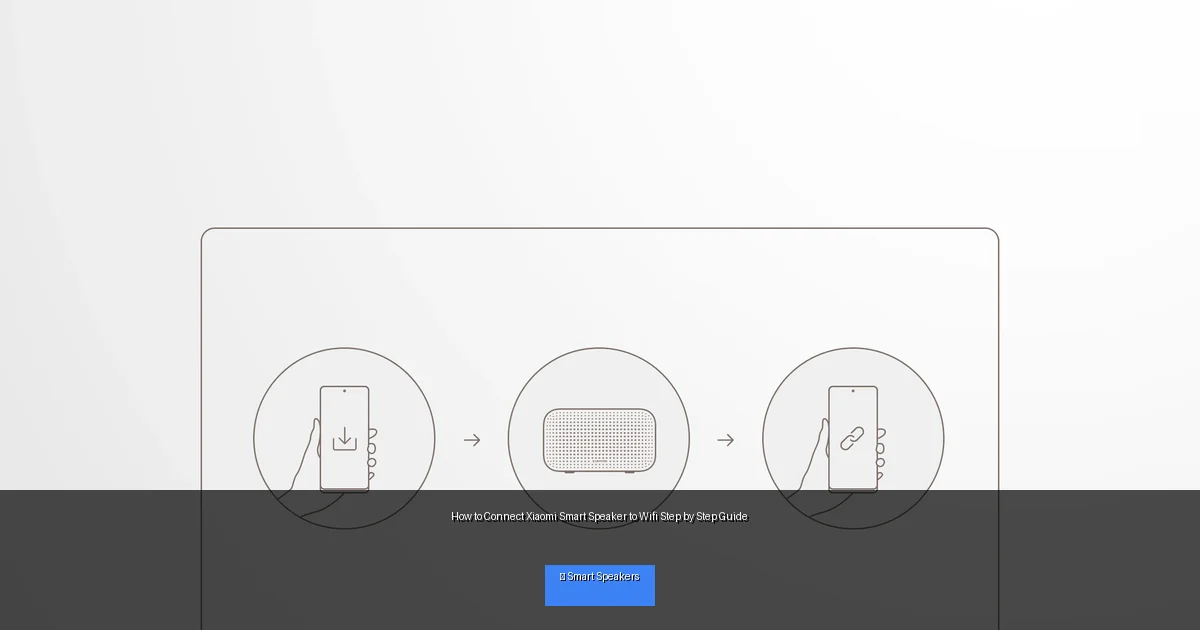
Visual guide about How to Connect Xiaomi Smart Speaker to Wifi Step by Step Guide
Image source: i02.appmifile.com
- A stable WiFi network with a password (2.4 GHz band is usually preferred)
- A smartphone or tablet with internet access
- The Xiaomi Smart Speaker powered on and nearby
- The Mi Home app installed on your mobile device
Step 1: Download and Install the Mi Home App
The Mi Home app is Xiaomi’s official platform to control and manage all Xiaomi smart devices, including your smart speaker.
For Android Users
- Open the Google Play Store.
- Search for “Mi Home”.
- Tap “Install” and wait for the app to download.
For iOS Users
- Open the App Store.
- Search for “Mi Home”.
- Tap “Get” and install the app on your device.
Once installed, open the app and sign in with your Xiaomi account. If you don’t have an account, you can create one easily within the app.
Step 2: Prepare Your Xiaomi Smart Speaker
Make sure your speaker is plugged in and turned on. You should see a power light or hear a startup sound. If this is your first time using it, the speaker will enter setup mode automatically.
Resetting the Speaker (If Needed)
If your speaker is not in setup mode (for example, if it was previously connected to another network), you’ll need to reset it:
- Press and hold the reset button (usually a small hole or button on the back or bottom) for about 5-10 seconds.
- Wait for the speaker to indicate it is resetting, often via a voice prompt or flashing light.
Step 3: Connect Xiaomi Smart Speaker to WiFi Using Mi Home App
Open the Mi Home App and Add Device
- In the Mi Home app, tap the “+” icon, usually found at the top-right corner.
- Choose “Add Device” from the menu.
- Look for “Xiaomi Smart Speaker” in the list or use the search bar to find it quickly.
Follow On-Screen Instructions
- The app will guide you to connect your phone to the speaker’s temporary WiFi hotspot.
- Once connected, the app will prompt you to select your home WiFi network.
- Enter your WiFi password carefully and tap “Connect”.
- Wait while the speaker connects to your WiFi network. This may take a minute.
When the connection is successful, the app will confirm, and your Xiaomi Smart Speaker will be ready to use.
Step 4: Test Your Connection
Try giving your speaker a simple voice command, like “Hey Xiaomi, what’s the weather today?” If it responds correctly, your connection is working well.
Tips for a Better Connection
- Place the speaker close to your WiFi router during setup.
- Use a WiFi network with a strong signal.
- Prefer 2.4 GHz over 5 GHz networks if your speaker does not support 5 GHz.
Troubleshooting Common Connection Issues
Problem: Speaker Not Found in Mi Home App
- Ensure the speaker is in setup mode (reset if necessary).
- Restart the Mi Home app and refresh the device list.
- Check that your phone is connected to the same WiFi network you want to connect the speaker to.
Problem: Incorrect WiFi Password Error
- Double-check the password you entered.
- Make sure there are no special characters that might cause issues.
Problem: Speaker Drops WiFi Connection
- Move the speaker closer to the router.
- Restart your router and speaker.
- Check for firmware updates in the Mi Home app.
Step 5: Customize Your Xiaomi Smart Speaker
After connecting to WiFi, explore the Mi Home app to customize settings such as language, voice assistant preferences, and linked services like music streaming accounts.
Conclusion
Connecting your Xiaomi Smart Speaker to WiFi is the gateway to enjoying all its smart features, from voice commands to smart home control. By following the simple steps in this guide, you can set up your device quickly and troubleshoot any issues if they arise. Remember, a stable WiFi connection ensures your smart speaker works smoothly and responds instantly. Now that your Xiaomi Smart Speaker is connected to WiFi, you’re all set to make your home smarter and more convenient!

